|
|

|
Creating Lara Outfits Page 3 |
| Page 1
- 2
- 3
- 4
- 5
- 6
- 7
- 8
- 9
- 10
- 11
- 12
- 13
- 14
Using Windows Explorer, go to your...
folder and copy the following files into your "Laras Closet\Preview" folder.
Next, go to your "Laras Closet\Preview" folder and rename the file names from "Starter" to "tut1" leaving the extensions as they are. While you're at it, go to your...
folder and copy all of your "tut1" wad files into your "Laras Closet\Original" folder. When you've finished this go to your...
folder and copy all of the "tut1" files into your...
folder. How to Create a "Starter.bmp" File In the event that you should accidently alter or lose the supplied Starter.bmp file, I'll take a moment to show you how to create one from scratch. Boot up your StrPix3 program. The program displays 2 windows, one of which will be grayed out until the program has a bitmap to display. On the menu bar click on File... Open. In the next window navigate to your...
folder and select the "Starter.WAD" file. Once opened, the left window will display a portion of the bitmap that we want. Although it may be a temptation, for the time being don't click on anything except what's mentioned here. Now click Textures... and select "Export to Bitmap." In the next window navigate again to your...
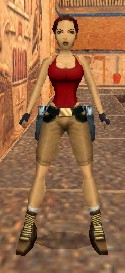
folder and save the file giving it the name "Starter.bmp." That's all there is to it. Go ahead and exit from the StrPix3 program. A More Serious Look at Texture Mapping I am of the belief that if you have a good understanding of objects and how textures are mapped onto them, the simple logic of how it's done will answer many of your questions later on. In Tomb Raider, all objects that are displayed on the screen have their exterior surface textured. The surface of the object is divided up into small polygon sections that I like to refer to as "tiles." We normally think of Lara as being one object, however, when creating outfits for her, it is better to think of her as a collection of objects. Each of these objects is covered with what's referred to as a "mesh" of polygons or "tiles." Each of these tiles is covered with a texture that's actually a bitmap image. If, after creating all of the images needed to cover all of the objects in our wad file, we were to group all of these smaller images into a larger image, we'd end up with an image that looks similar to the "Starter.bmp" image. This "group" of images is stored in the wad file with the rest of the object information. If you take a look at the pages in your "Lara_Color_Mesh" section, you'll see that each drawing of Lara has been color coded. Each group of tiles that are of the same color are part of the same mesh. The process of keeping track of which texture is covering each tile is referred to as "mapping." If you look at the first page in your "Lara_Color_Mesh" section you'll see that Lara has a yellow colored tile on her tummy with a "158" printed on it. The "158" is the index number that can be used to quickly locate the small texture used on this tile within the large texture map. If you turn to the "Master_Key" section and look down the left side of the page until you come to a line that begins "158" you'll see that its coordinates on the bitmap are "2-2D" and that it is her "tummy." The first number indicates which of the 3 pages of bitmap images we'll find the tile on and the last two characters are where on the page we'll find it. In this case, turn to page 2 of your "Bitmap" section. Now, using the last two characters, go down to "D" and then across to "2." (These are displayed on the left and bottom margins.) You should see the numbers "158" in one of the nearby squares. This square shows you which section in the bitmap on the left that the tile is "mapped" to. In this case it's the 4th small image in from the left which contains Lara's belt buckle. You should now have a basic understanding of how textures are mapped onto Lara's exterior as well as an idea of how to use some of the supplied pages or "tools." Mapping will get a little more involved later when we learn more about how textures are rotated, mirrored, and clipped when they're placed in the tiles. A quick observation reveals that all of the texture images are rectangular, but many of the tile sections are triangular -- kind of like putting a square peg in a round hole.
|